Appearance
The admin panel
The admin panel is where you make your bots, connect the AI services they use, and look after what visitors say to them. It lives at /admin/ on your Wireface Chat server: https://chat.wireface.dev/admin/ for a hosted account, or your own server's address if you run one. To get in for the first time, see Getting started.
Finding your way round
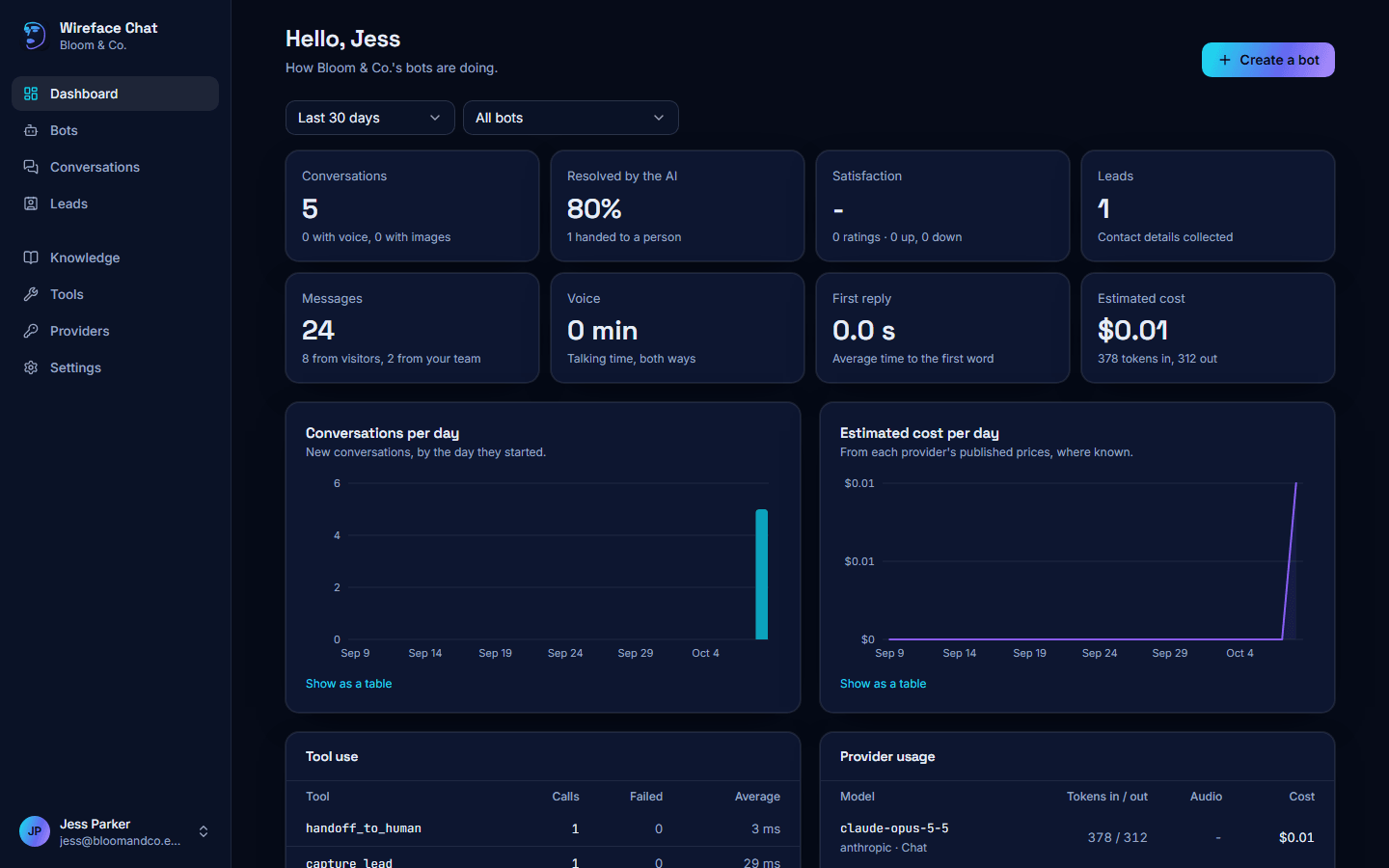
The sidebar on the left has every area. On a phone or a narrow window it folds away behind the menu button at the top.
| Area | What it's for |
|---|---|
| Dashboard | How your bots are doing: conversations, satisfaction, leads, voice minutes and estimated cost, with recent conversations. See The dashboard. |
| Bots | All your bots, each with its face, status and layout. Make a new one from a template here. See Bots. |
| The bot editor | Open a bot to change everything about it, tab by tab, with a live preview. See The bot editor, and Face and voice for those two tabs. |
| Conversations | Every chat with your bots. Read transcripts, take over from the AI and reply as yourself. See Conversations. |
| Leads | Contact details your bots collected, with a CSV download. See Leads. |
| Knowledge | The pages, sitemaps, files and text your bots answer from. See Knowledge. |
| Tools | Actions your bots can take: calls to your own systems (HTTP tools) and MCP servers. See Tools. |
| Providers | The AI services your bots think and speak through, with your own API keys. See Connect an AI provider. |
| Settings | The workspace, your team, API tokens, webhooks, privacy requests, the audit log and your account. See Settings. |
When a visitor is waiting for a person, a count shows next to Conversations.
Your menu
Your name at the bottom of the sidebar opens your menu. It shows who you are signed in as and your role, and whether live updates are on. From it you can:
- set your Status for handoffs: Online, Away or Offline. Requests for a person only go to team members who are online or away (see Taking over);
- turn the Handoff sound on or off, and Turn on desktop notifications (shown until you've answered the browser's question);
- open Account settings, the Documentation and the API reference;
- Sign out.
What you can see
What you can change depends on your role in the workspace: Owner, Admin, Agent or Viewer. Agents look after conversations and leads; owners and admins can also change bots, providers, knowledge, tools and settings. Some parts of the panel, such as the Secrets tab and several Settings sections, only show for owners and admins. See Roles.