Appearance
The bot editor
Each bot is one agent: a face, a voice and a brain, with its own instructions and rules. You change a bot in the bot editor. Your changes go into a draft that saves itself; visitors only see them once you publish.
Bots
The Bots page shows every bot in the workspace.
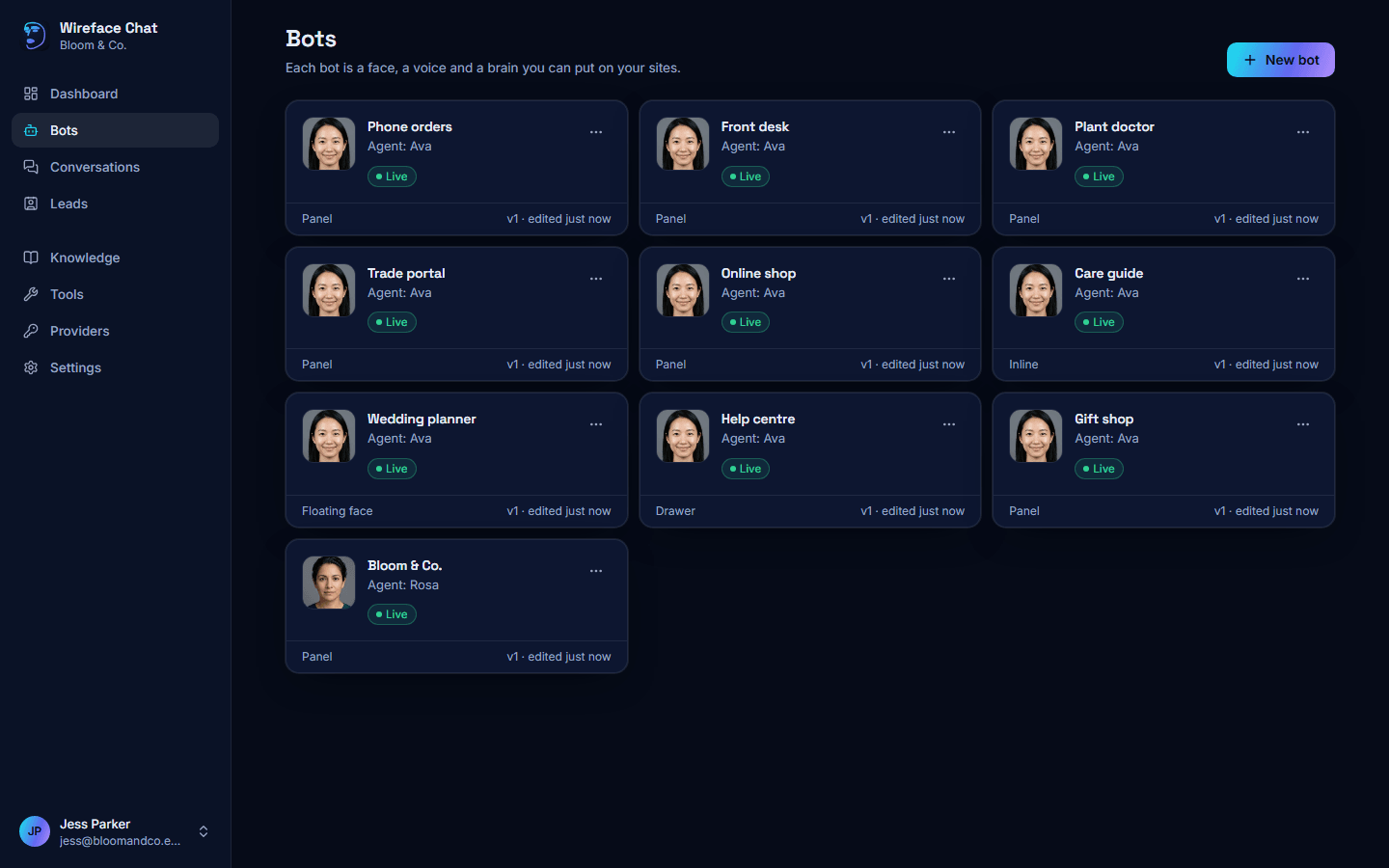
Each card shows the bot's face and name, its agent's name, its status, its layout, and its published version with when it was last edited.
| Status | Meaning |
|---|---|
| Draft | Never published. It shows nothing on your site yet. |
| Live | Published and showing on your site. |
| Paused | Hidden on every site until you resume it. |
| Unpublished changes | Shown next to the status when the draft has changes that aren't live yet. |
Click a card to open the bot. The ... menu on a card has Open, Duplicate (a copy of the bot), Pause or Resume, and Delete. Deleting a bot removes the chat from every site it's on; its conversations stay in Conversations.
To make a bot, click New bot. See Create a bot from a template.
The editor
The top of the editor shows the bot's face and name (click the name to change it), its status, and whether your changes are saved. On the right are Versions, Pause (or Resume) and Publish.
Below that are the tabs: Identity, Brain, Face, Voice, Vision, Appearance & embed, Behaviour, Knowledge, Tools and Security. A tab with a problem has a red dot.
When something needs attention, a line under the name says how many things there are to fix before publishing, and how many warnings. Open it to see each one, with a Go to link to the tab it's on.
Drafts save themselves
There's no save button. A moment after you change something, the draft is saved, and the indicator next to the status says so:
| Indicator | Meaning |
|---|---|
| Saved | Everything is saved. |
| Unsaved changes / Saving... | Your change is on its way. |
| Not saved: fix the highlighted field | A field has a value that isn't allowed. Fix it and saving carries on. |
| Not saved | Saving failed. Click Retry. |
| Changed elsewhere | Someone else (or you, in another tab) saved this bot first. |
When the bot was changed elsewhere, your latest edits aren't saved, and a banner offers Reload to get the current version. Reloading loses the edits you made here that weren't saved.
Saving the draft doesn't change what visitors see.
Publishing
Click Publish (or Publish changes once the bot has been published before). Publishing checks the draft, then freezes a copy of it as a numbered version, and the message says which version is live.
- Chat windows on your site switch to the new version.
- Conversations already under way keep the version they started with for their instructions, brain, voice and tools. How the chat looks follows the new version.
The button is greyed out when there's nothing new to publish (Everything is published), or when something stops the bot working: no provider or model for the brain, a key the provider rejected, a voice that isn't set up, a custom face that was deleted. Point at the button to see the list, or open the problems line under the bot's name.
Warnings don't stop you publishing. The most common one is that any website can show the bot until you add yours in the Security tab.
Versions and rollback
Versions lists the published versions, newest first, with the live one marked live. To go back to an earlier version:
- Open Versions and click the version.
- Click Restore into draft. The draft is replaced by that version's settings.
- Check it, then click Publish changes. What's live doesn't change until you do.
Pausing a bot
Pause hides the chat on every site at once, without deleting anything. Resume puts it back. Both are in the editor's header and in the bot's menu on the Bots page, once the bot has been published.
While a bot is paused, its install code shows nothing.
The live preview
The Appearance & embed tab has a Preview: a stand-in web page with your bot on it, running your draft rather than what's live. Open the chat in it and try it.
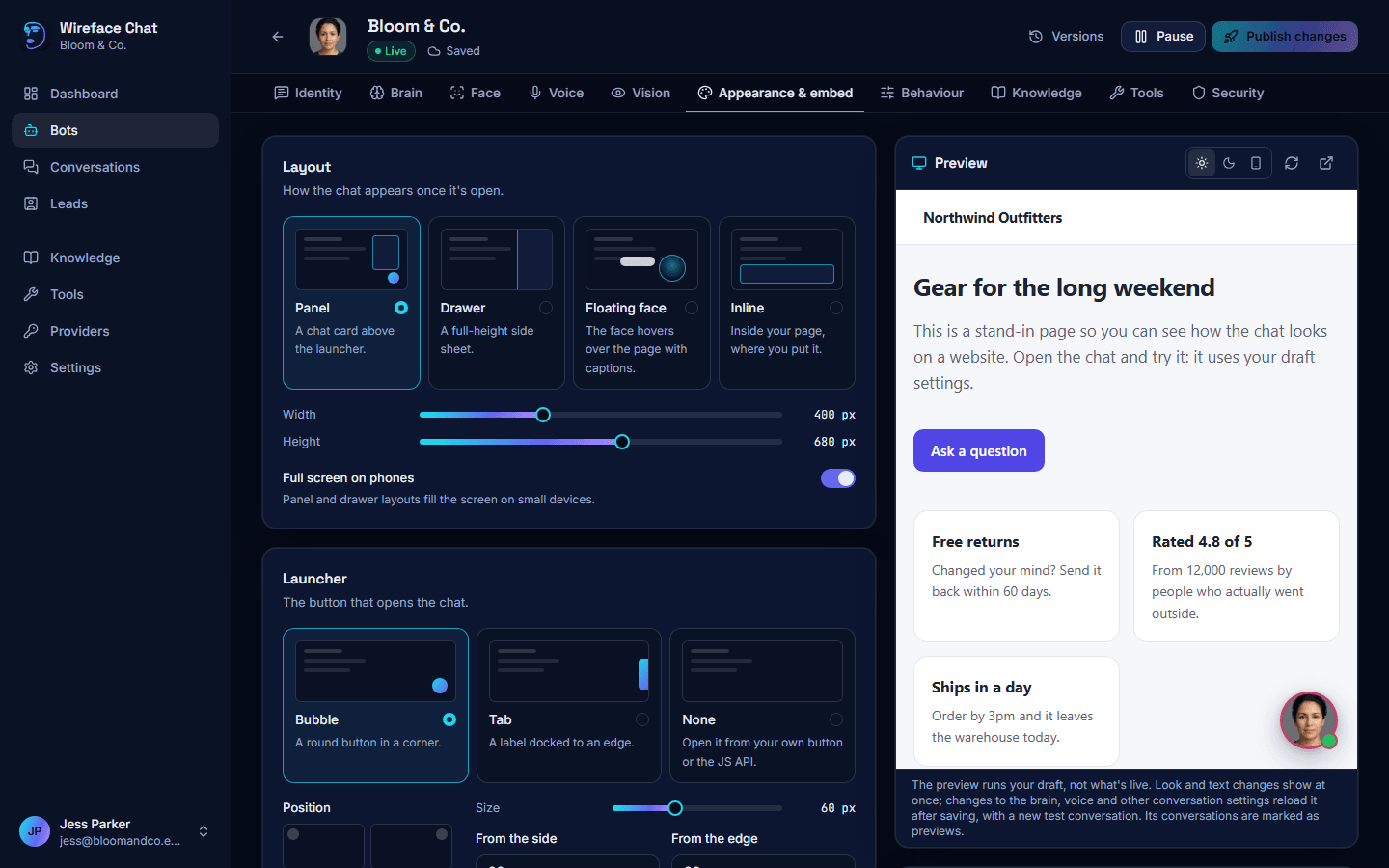
- Changes to the look and the words (layout, launcher, colours, the face, texts, the welcome message and the teaser) show in the preview at once, before they're even saved.
- Changes to how the conversation runs (the brain, voice, vision, tools, knowledge, security, the instructions, business hours, handover and lead capture) reload the preview after they're saved, with a new test conversation.
The buttons above the preview show it on a Light page, a Dark page or a Phone, Reload the preview, and Open in a new tab. Test conversations are marked Preview in Conversations, and aren't counted in the dashboard's conversation numbers (what they cost is).
Identity
Who the agent is, how it talks, and what it's told.
- Who it is. Agent name and Role show in the chat's header. Business name tells the agent who it works for.
- Personality. Pick Friendly, Professional, Playful, Concise, Empathetic or Your own, then add notes in More about its personality (optional). With Your own, describe it there.
- Language and time. Language, and whether it Replies in the visitor's language or only that one. Time zone lets the agent know the date and time, for opening hours and "tomorrow".
- Instructions. What the agent should do: your products, policies, tone, and when to hand over to a person. The buttons below the box insert a variable where your cursor is, filled in when a conversation starts:
{{agent.name}},{{agent.role}},{{business.name}},{{visitor.name}}and{{visitor.email}}(only when your site has verified who the visitor is),{{page.url}}and{{page.title}}. - Guardrails. Topics or actions the agent should refuse. It already never pretends to be human, and won't identify people on camera.
- Welcome. The Welcome message visitors see first, up to six Suggested prompts (buttons under it: type one and press Enter), and Speak the greeting, which with voice on says the welcome message aloud when the chat opens.
Brain
The AI model that writes the replies, for typed chat and for cascade voice.
- Provider and Model: the lists come from the providers you've connected. Badges under the model say whether it's Recommended, how much it can read and write, and whether it Sees images.
- Thinking effort: Minimal is fastest, Low suits most chat, Medium is more careful and a little slower, High is for tricky questions and costs more.
- Limits. Longest reply (in tokens; a token is about three quarters of a word), Tool rounds per reply (how many times it may use tools before answering), Set the temperature (off uses the model's own default, best for most models), and Summarise history after (long conversations are summarised, not cut off, past this many tokens).
Face
The face, its skin, colours, moods and lip sync. See The face.
Voice
Voice conversations, the voice engine, and reading typed replies aloud. See Voice.
Vision
Pictures from visitors, and the webcam. See also Vision and webcam.
- Images. Allow images lets visitors attach, paste or drop pictures. Set the Images per message and the Largest image. If the brain's model can't see images, a warning says so.
- Webcam. Offer the webcam adds a camera button. The camera only starts after the visitor agrees to the Consent text; add a Privacy policy link (optional). When frames are sent: Continuous (a steady trickle, best with Gemini Live), Each turn (one picture each time the visitor speaks or sends a message) or On request (only when the agent decides to look). Frames per second (most) and Frame width limit how much is sent.
- Keep camera frames: off, camera pictures are deleted an hour after the conversation ends. Let your team see camera frames: off, nobody in the admin panel sees them, even in transcripts.
- Describing pictures for voices that can't see. Only used with ElevenLabs Agents, which can't look at pictures itself. Use a separate vision model picks the model that describes them; off, the brain does.
Appearance & embed
How the chat sits on your page, the preview, and the install code. See also Layouts and launchers and Customising.
- Layout. Panel (a chat card above the launcher), Drawer (a full-height side sheet), Floating face (the face hovers over the page with captions) or Inline (inside your page, where you put it). Each has its own sizes. Full screen on phones makes the panel and drawer fill small screens.
- Launcher. Bubble (a round button in a corner), Tab (a label docked to an edge) or None (open it from your own button). For a bubble, pick its Position, Size, distance From the side and From the edge, and Icon. For a tab, pick its Edge and where it sits Along the edge. Label is read out by screen readers (and is the text on a tab). Hide on phones removes the launcher on small screens.
- Theme. Light or dark (or the visitor's system setting), Accent colour, Font and Corner radius. Show the face (off gives a text-only chat), Face size, Captions in voice conversations, and Typed replies: what the face does while a text reply appears (Mouths the words silently, Stays still, or Reads them aloud; see Reading typed replies aloud). Raise the Stacking order (z-index) if your site's own pop-ups cover the chat.
- Greeting teaser. Show a teaser puts a small speech bubble next to the launcher, with the Teaser text, after Show after seconds. How often: Once per visit, Once per visitor or On every page. Limit it with Only on these pages and Never on these pages (paths such as
/pricingor/blog/*), and choose whether it shows On phones too. - Install. The bot's id and its install code, in tabs: Script, iframe, npm, React, Next.js, Vue, GTM and JS API (and Pinned for a fixed version). See Embedding.
Behaviour
- Lead capture. Capture leads collects contact details with a short form. See How leads are collected.
- Hand over to a person. Allow handover lets the agent or the visitor ask for someone from your team, who replies from Conversations. Wait for someone to accept is how long a request waits before the visitor is told nobody is free. If nobody accepts: with Ask for contact details (the default), the chat shows the lead form when nobody from your team is available. See also Human handoff.
- Business hours. Use business hours, with its Time zone, sets when your team is around. Applies to: Handover only (the agent is always on), or The whole chat (offline outside hours). Switch each day on or off and set its times; Range adds a second set of hours to a day (for a lunch break). Holidays are dates you're closed all day.
- Feedback. Thumbs up and down on the agent's replies, Rate the conversation (one to five stars when it ends), and Show sources (links to the knowledge an answer came from). See Ratings.
- Conversations. Pick up where they left off lets a returning visitor carry on within so many hours (0 always starts fresh). End after no messages for closes quiet conversations. Show earlier messages, the New conversation button, Transcript download (visitors can save the conversation as a text file) and the Powered by Wireface credit.
- Texts. The chat window's Title (empty uses the agent's name), Subtitle, Message box placeholder, and the Offline message shown when nobody is available.
Knowledge
Which knowledge sources this bot answers from. Sources belong to the workspace and are added on the Knowledge page (or with Add a source here); see Knowledge.
- Sources this bot uses. Switch each source on or off for this bot. If a source it used was deleted, Remove them tidies the list.
- How it searches. Search: Before each reply, and when the agent asks (recommended), Before each reply, or Only when the agent asks. Live voice always searches when the agent asks. Passages per search sets how much it reads each time.
- Try it shows what this bot would find for a question, from its own sources.
Tools
What the agent can do besides talking. See Tools.
- Built-in tools: Search knowledge, Capture a lead, Hand over to a person (needs handover on, under Behaviour), End the conversation, Facial expressions (in live voice) and Look at the camera (needs the webcam on, under Vision). Switch off any the bot shouldn't use.
- HTTP tools and MCP servers: the workspace's tools, from the Tools page (Manage goes there). Switch on the ones this bot may use. For an MCP server, choose All of its tools or tick the ones allowed, and whether to Ask before tools that change things: the visitor then taps Allow or Don't allow first.
- Tools on your page: functions your website gives the agent. See Tools on your page.
- Limits. Tool timeout and Longest tool result (longer results are cut).
Security
- Allowed websites. Under Origins, add the sites that may show the chat, such as
https://example.com,https://*.example.comfor its subdomains, orhttp://localhost:*for testing. Other sites get an error instead of your bot. With none, any website can show it, and use your AI credit. - Identity verification. Proves who a signed-in visitor is, for sites with accounts. Verification is Off, Verify when a hash is sent or Required. Generate secret makes the secret your web developer needs (shown once; Make a new secret replaces it). The developer guide is Identity verification.
- Rate limits. Messages a minute and Image uploads an hour per visitor, New conversations an hour per IP address, the Longest message and the most Turns per conversation.
- Daily caps. Hard limits per day for this bot: Spend (in US dollars, where the provider's prices are known), Voice minutes, Messages, and Voice calls at once. When one is reached, the chat says it's busy until the next day. Leave one empty for no cap.
For more on keeping a bot safe, see Security.