
Appearance
Leads and analytics
Your bots can collect visitors' contact details (leads) and ratings, and the dashboard shows how they're doing.
How leads are collected
A lead is contact details a visitor leaves so your team can follow up. Turn it on per bot:
Open the bot, go to the Behaviour tab, and under Lead capture turn on Capture leads.
Choose When to ask:
Choice What happens When the agent decides it fits No form. When a visitor wants someone to follow up, the agent asks for the details in the conversation, checks them with the visitor, and saves them. Before the chat starts A short form in the chat before the first message. Before handing over to a person The form appears when the visitor is about to talk to your team, so you know who they are. Only when nobody is available The form only appears when nobody from your team can take the chat. Set the fields. Name and email are there to start with. For each field, set its Label, its Key (a short name for it, filled in from the label), its Type (Text, Email, Phone, Long text or Choice, with the Choices separated by commas), and whether it's Required. Add a field adds another, up to 12.
Publish.
However you choose to ask, the agent can save details it's given in the conversation with its Capture a lead tool (in the Tools tab). With the default handover settings, the form also appears when a visitor asks for a person and nobody is available.
The Leads page
Leads lists the contact details your bots collected, newest first.
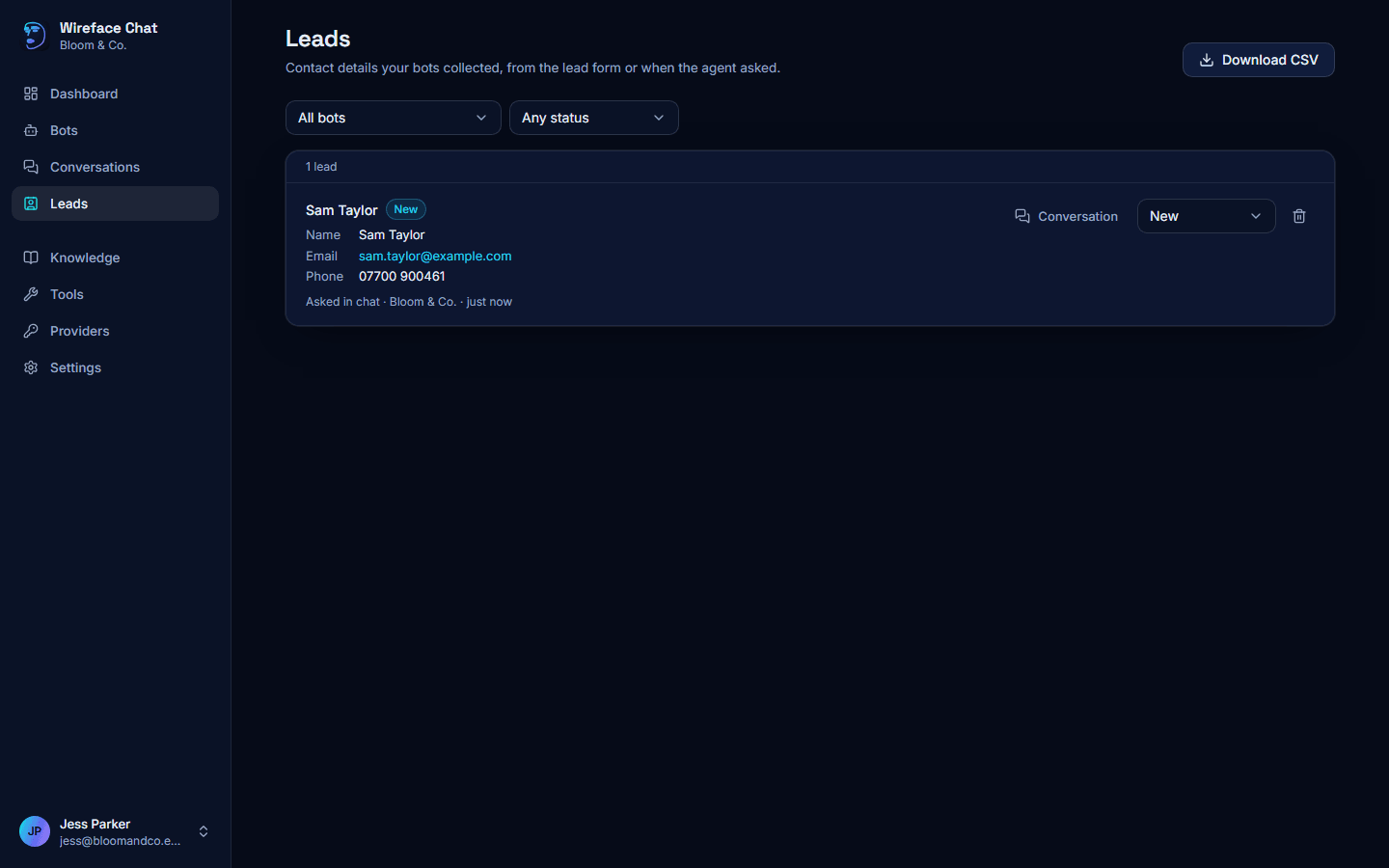
Each lead shows the details the visitor gave, where they came from (Asked in chat, Lead form, or Added by API from your own systems), the bot, and when.
- Filter by bot (All bots) and by status (Any status).
- Conversation opens the conversation the lead came from.
- Use the status as you work through them: New, Contacted, Closed. New leads have a New badge.
- The bin deletes a lead (owners and admins only). Anything already sent to a webhook stays where it went.
- Download CSV downloads the leads as a spreadsheet file, for the bot you've filtered on (or all bots).
When a visitor gives a name and email, they're also shown on the visitor in Conversations.
To send each new lead to your CRM or another system as it arrives, add a webhook for the lead.captured event.
Ratings
Two kinds of rating, both on by default, in the bot's Behaviour tab under Feedback:
- Thumbs up and down on the agent's replies. A thumb shows in the transcript as Helpful or Not helpful, with the visitor's comment if they left one.
- Rate the conversation: one to five stars, asked when the conversation ends (when the agent says goodbye, or your team closes it).
Ratings show:
- in the conversation list, as a star with the score;
- in the transcript, and the visitor sidebar's Rating;
- in the conversation filter: Rated 4 or 5 or Rated 1 or 2;
- on the dashboard, under Satisfaction.
Reading the low-rated conversations (Rated 1 or 2) is a quick way to find what to improve in the bot's instructions or knowledge.
The dashboard
The Dashboard is the first page you see after signing in.
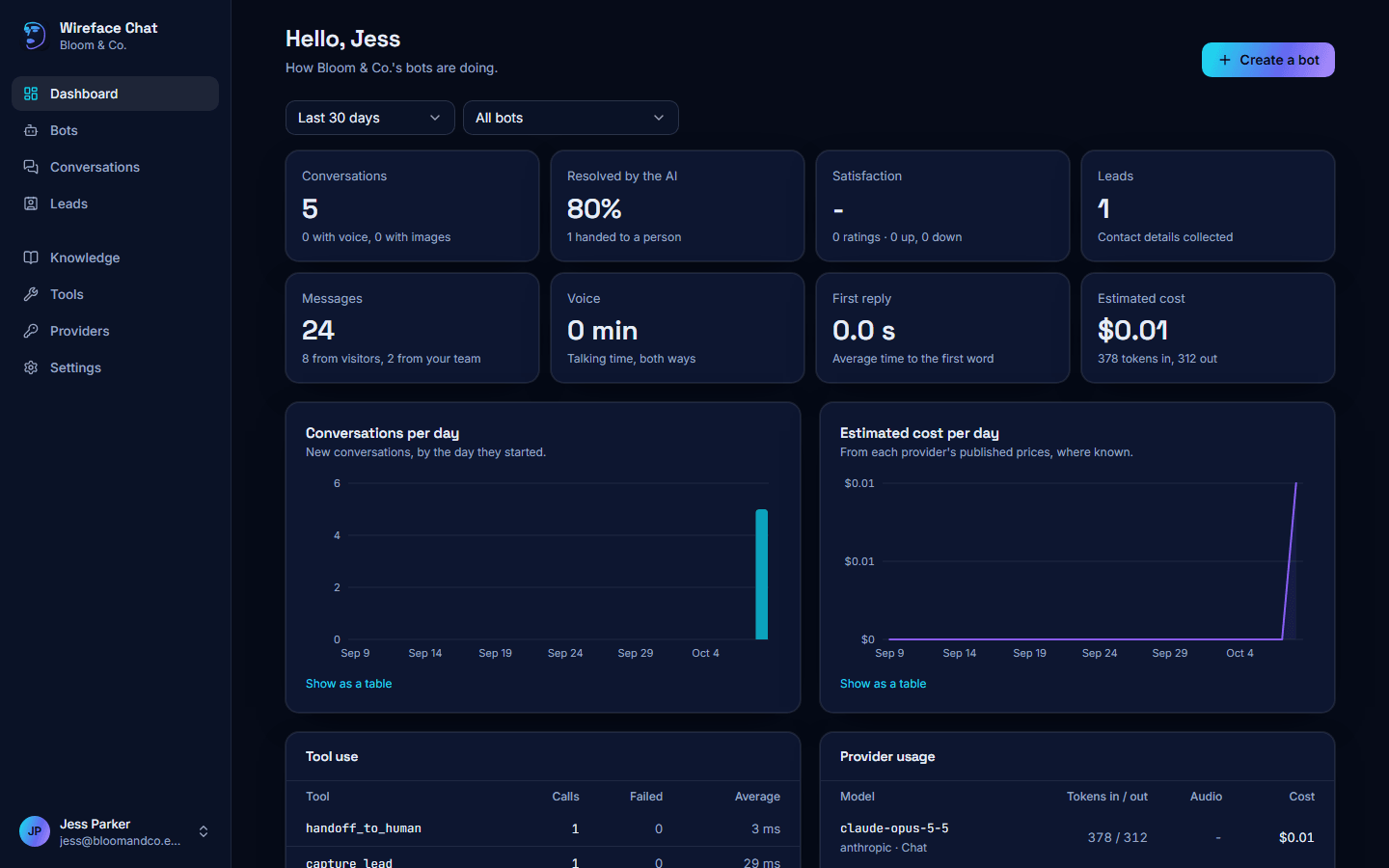
Choose the period at the top (Last 7 days, Last 30 days or Last 90 days, as whole days in your time zone) and a bot, or All bots. Everything on the page follows that choice. The numbers refresh every couple of minutes.
The numbers
| Tile | What it counts |
|---|---|
| Conversations | Conversations started in the period, and how many used voice and images. |
| Resolved by the AI | The share of those conversations that nobody asked a person to join, and how many were handed to a person. |
| Satisfaction | The average star rating, out of 5, with the number of ratings and the thumbs up and down. |
| Leads | Conversations where contact details were collected. |
| Messages | All messages, with how many came from visitors and from your team. |
| Voice | Minutes of voice, counting both the visitor and the agent talking. |
| First reply | The average time from a visitor's message to the first word of the reply. |
| Estimated cost | What your bots' AI use cost, with the tokens (pieces of text) read and written. |
Conversations from the bot editor's preview aren't counted in the conversation numbers. Their cost is included.
Costs are estimates
Estimated cost is worked out from each provider's published prices, where they're known; models without a known price count as free. Your provider's own bill is the real figure. To stop a bot spending more than you expect, set its daily caps in the Security tab.
The charts and tables
- Conversations per day: new conversations, by the day they started. Point at a day to see its messages and leads too.
- Estimated cost per day: point at a day to see its voice minutes too.
- Show as a table under each chart lists every day's figures.
- Tool use: each tool the agents used, with its Calls, how many Failed, and the Average time it took. Many failures point to a tool that needs fixing.
- Provider usage: each model used, with what it was used for (such as Chat, Live voice or Text to speech), the Tokens in / out, the Audio minutes and the Cost.
At the bottom are the Recent conversations, your Bots, and your Providers with their status, each with a link to the full page. Create a bot at the top starts a new one.