Appearance
Hosted accounts
At chat.wireface.dev you can use Wireface Chat without running a server. You sign in with a wireface.dev account and get a workspace of your own, which works like any other: the same admin panel, bots and features, with a few limits.
Try the demo first
To look around before signing in, click Try the demo on the sign-in page (or Explore the admin on wireface.dev/chat). You get a demo workspace of your own, straight away, with:
- Rosa, a sample bot for a florist, Bloom & Co., with its knowledge already added;
- three sample conversations, one of them taken over by a person from the team, and a lead.
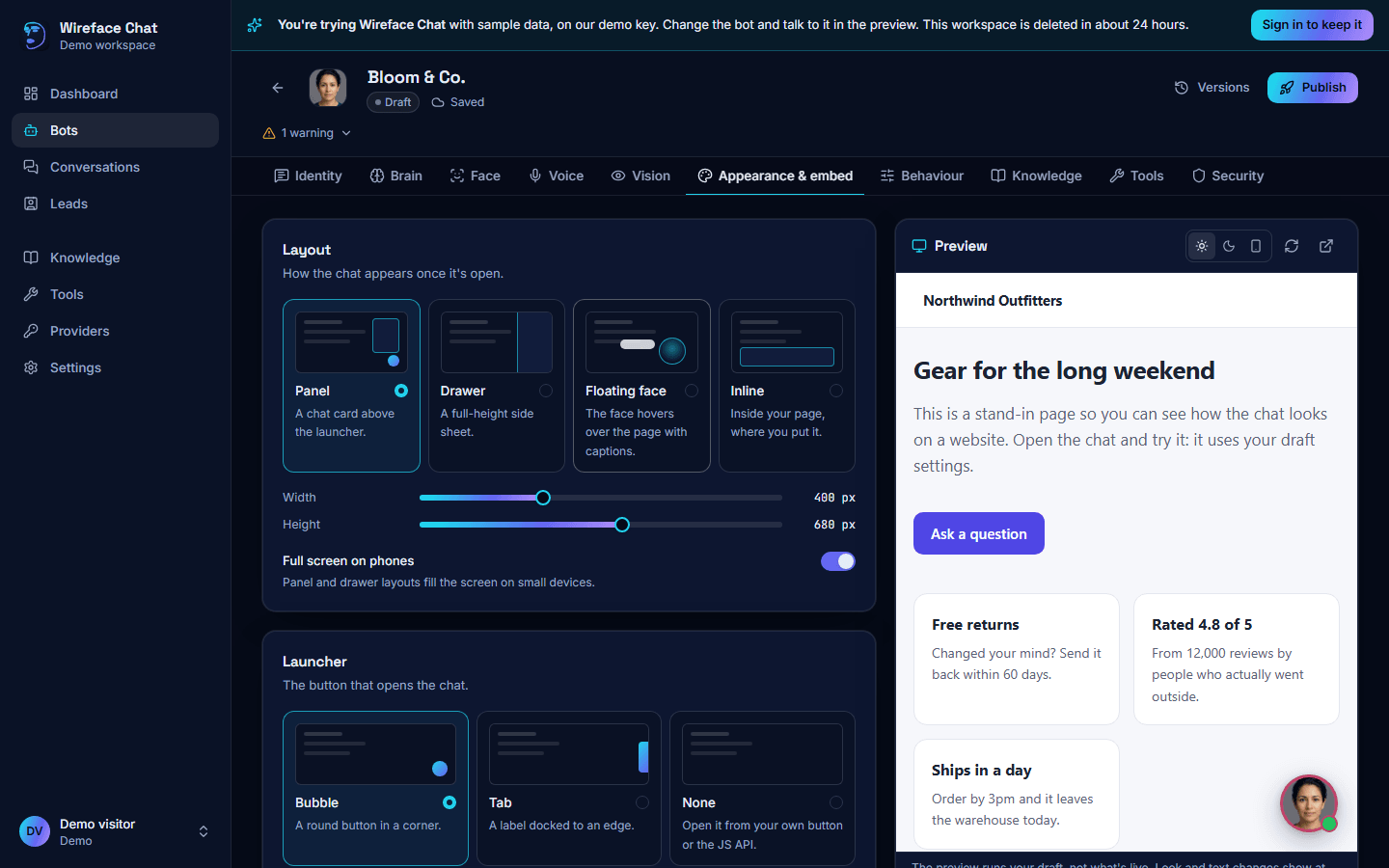
Change anything about the bot (its face, voice, personality, layout) and talk to it in the live preview, by typing or with the microphone. It runs on our demo key, so the demo has a few limits:
| In the demo | |
|---|---|
| Bots | the sample one |
| Messages | 40 a day, and a few minutes of voice |
| Knowledge | 3 sources, small ones |
| Not in the demo | connecting your own AI keys, publishing, tools, webhooks, API tokens and team |
The demo workspace is deleted after a day. To keep it, click Sign in to keep it in the banner: once you've signed in with your wireface.dev account, it's yours, with the hosted limits below. The demo key goes, so the next step is to connect your own AI key; then publish your bot and put it on your website.
Signing in
- Go to
https://chat.wireface.dev/admin/and click Sign in with wireface.dev. - wireface.dev texts a code to your mobile. Enter it there.
- You come back to the admin panel, signed in.
There's no password: wireface.dev texts you a code instead. The first time, the same button makes your wireface.dev account and your workspace, and takes you to the setup's Provider step. See Getting started.
Your workspace
Each account gets its own workspace. Other hosted accounts can't see your bots, conversations or keys. To work with others, invite them to your team; they sign in with the email and password they choose when they accept.
You're the workspace's owner. It's named after you to start with; rename it under Settings, Workspace.
Your own AI keys
A hosted workspace doesn't come with AI: you connect your own account with Anthropic, OpenAI, Google Gemini or ElevenLabs, with its API key, under Providers. Your bots' AI use is billed by your provider to you, on your account with them. The dashboard's Estimated cost is only an estimate; your provider's bill is the real figure.
Your keys are checked before they're saved, stored encrypted, and never sent back to a browser. See Connect an AI provider.
Limits
A hosted workspace can have:
| What | Most |
|---|---|
| Bots | 3 |
| People in the team, counting open invitations | 3 |
| Knowledge sources | 10 |
| Pages read from one website or sitemap source | 50 |
| Size of a knowledge file | 5 MB |
| HTTP tools and MCP servers, together | 10 |
| Webhooks | 3 |
| Custom faces (made from photos) | 10 |
| How long conversations are kept | 90 days |
When you reach a limit, adding one more says so, for example "Hosted workspaces can have 3 bots. Remove one to add another." Removing something (or cancelling an invitation) makes room.
A few of these work differently from the panel's own hints:
- Pages. A website or sitemap source reads at most 50 pages, even if you set Most pages higher.
- Files. A knowledge file can be at most 5 MB, although the Add knowledge dialog says 25 MB.
- Keeping conversations. Conversations start out kept for 90 days. Under Settings, Workspace, you can choose fewer days; 0, or anything over 90, is saved as 90.
Tools reach the public internet only
HTTP tools, MCP servers, webhooks and knowledge sources in a hosted workspace can only reach addresses on the public internet, not private or local ones. The Allow private network addresses switch isn't offered for HTTP tools. If your system is only reachable inside your own network, run your own server instead.
Your account section
Settings, Your account has no password for you to change. Your wireface.dev account opens wireface.dev/account, where your name and mobile number are kept.
Deleting your workspace
The owner can delete the workspace, and everything in it, for good: its bots, conversations, visitors, leads, knowledge, tools, provider keys and files. Chat windows on your websites stop working at once. This can't be undone.
- Go to Settings, Your account.
- Under Delete this workspace, type the workspace's name in the box.
- Click Delete workspace, then Delete it to confirm.
You're signed out. If you sign in again later, you get a new, empty workspace.
Delete the workspace first
Deleting your wireface.dev account doesn't delete your Wireface Chat workspace. If you want both gone, delete the workspace here first, then your wireface.dev account.
Running your own server
A server of your own has none of these limits, and can reach your private network if you allow it. See Docker to get started.
Licence and terms
Using the hosted service at chat.wireface.dev is covered by wireface.dev's terms. Running the Wireface Chat software yourself for commercial use (for a business, on a company's website, or for clients) is covered by its licence, and needs a commercial licence: see wireface.dev/license.