
Appearance
Conversations
Conversations has every chat with your bots: the list on the left, and the open conversation on the right, with the visitor's details beside it. From here your team can step in, reply as themselves, and hand back to the AI.
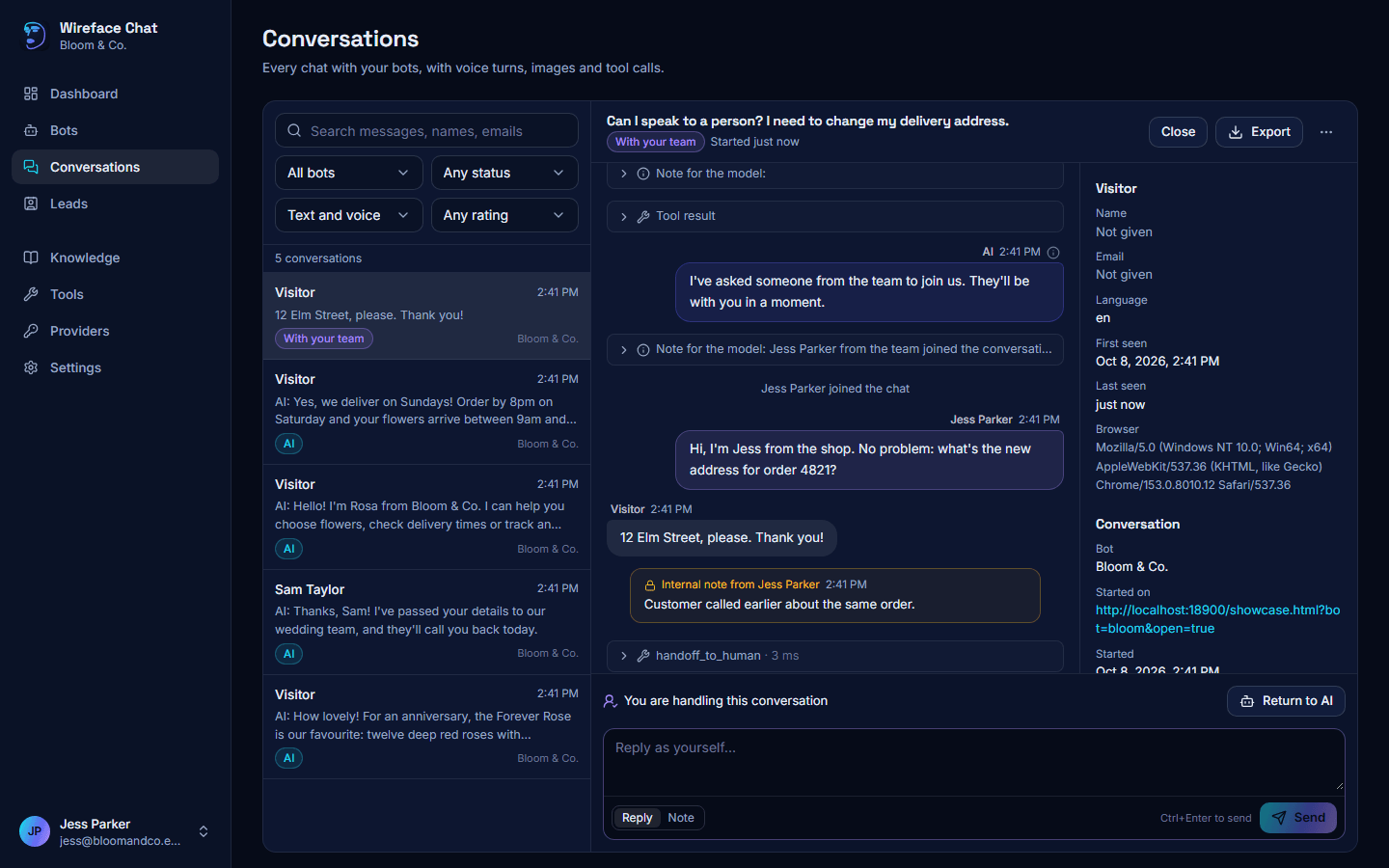
The inbox
The newest conversations are at the top. Each one shows who the visitor is (their name or email if they gave it, or Visitor; a tick means your site verified them), the time, the last message (AI: or Team: in front when it wasn't the visitor), and which bot it was with.
| Badge | Meaning |
|---|---|
| AI | The AI is handling it. |
| Waiting for a person | The visitor or the AI asked for someone from your team. |
| With your team | Someone from your team has taken over. |
| Closed | The conversation has ended. |
A voice mark means the visitor talked, and a star shows their rating. Load more at the bottom fetches older conversations. The list keeps itself up to date.
Filters and search
- Search messages, names, emails finds conversations as you type.
- The bot: All bots, or one.
- The status: Any status, Open (not closed), Closed, With the AI, Waiting for a person or With your team.
- How they talked: Text and voice, Used voice or Text only.
- The rating: Any rating, Rated 4 or 5 or Rated 1 or 2.
The filters are part of the page's address, so you can bookmark a view or send it to someone on your team.
Reading a transcript
Click a conversation to open it. Its header shows the title, the status, and when it started; conversations from the bot editor's preview are marked Preview.
Messages are labelled Visitor, AI, or the name of the person from your team who wrote them, with the time. Also in the transcript:
- voice on messages that were spoken rather than typed.
- Point at the i icon next to a reply to see the model that wrote it, and how many tokens and how much audio it used.
- Interrupted by the visitor, with They heard: and the part of a spoken reply the visitor heard before they talked over it.
- This reply failed when the AI couldn't answer.
- Helpful or Not helpful under a reply the visitor rated with a thumb, with their comment if they left one.
- Tool calls, folded under the reply that used them: the tool's name, how long it took, and failed if it did. Click one to see its Arguments and Result.
- Note for the model and Tool result rows: what the AI was told behind the scenes. Click to open them.
- Events such as "Jess Parker joined the chat", in small text.
- Images the visitor sent; click one to open it in a new tab. Camera pictures only show if the bot's Vision tab lets your team see them.
While a conversation is live, you see the AI's reply as it's written, and when the visitor is typing or the AI is thinking or using a tool.
The visitor sidebar
Beside the transcript (or under it, on a narrow screen):
- Visitor: Name and Email (or Not given), verified if your site proved who they are, their User id on your site, Language, First seen, Last seen, Browser, and any Traits your site passed.
- Conversation: the Bot, the page it Started on, when it Started and Ended (and why), the number of Messages, the Tokens used, the Audio time, and the visitor's Rating with their comment.
- Tags: labels for your team, such as
billing. Type one and press Enter; click a tag's cross to remove it.
Taking over
When a visitor asks for a person, or the AI decides they need one, the conversation shows Waiting for a person. If you have the admin panel open, it plays a chime (unless you turned Handoff sound off in your menu) and shows a message, A visitor is asking for a person, with Open to go straight to it. If you turned on desktop notifications in your menu, you also get one when the panel isn't the tab you're looking at.
To take the conversation:
- Open it. A box at the bottom says who asked for a person, Why, and a Summary of the conversation so far, written by the AI.
- Click Accept. The first person to accept gets it.
The visitor sees that you joined the chat, and the AI stops answering until you hand it back. Meanwhile, until someone accepts, the AI keeps the visitor company.
You can also step into a conversation nobody asked you to: open one the AI is handling and click Take over.
Requests only go to the team when someone is available: within the bot's business hours (if it uses them), and with someone from the team online or away (in your menu's Status for handoffs, with the admin panel open). Set yourself to Offline to stop requests counting on you. What the visitor sees when nobody is available is set in the bot's Behaviour tab. More detail: Human handoff.
Replying as yourself
Once you're handling a conversation, the box at the bottom says You are handling this conversation.
- Make sure Reply is selected (not Note).
- Type in Reply as yourself.... The visitor sees that you're typing.
- Click Send, or press Ctrl+Enter.
Your messages appear in the chat with your name. If the visitor was talking by voice, voice ends when you take over and the chat carries on in text.
Internal notes
Notes are for your team only: the visitor and the AI never see them. Anyone who can handle conversations can add one at any time.
- When you're handling the conversation, choose Note instead of Reply.
- Otherwise, the box at the bottom is for notes (it says Internal note: take over to reply to the visitor).
Type the note and click Add note. Notes show in the transcript with a lock, as Internal note from and the writer's name.
Returning to the AI
When you're done, click Return to AI. The visitor sees that you left the chat, and the AI picks up from there, knowing what was said.
Close, export and delete
At the top of the transcript:
- Close ends the conversation. If the bot asks for ratings, the visitor is asked to rate it.
- Export downloads the transcript as Markdown (.md), Plain text (.txt), or Everything as JSON.
- The ... menu has Delete conversation. This deletes its messages, images and tool calls for good. Use it for privacy requests; to remove everything about one visitor, use Privacy instead. Only owners and admins can delete conversations.
Conversations are also deleted automatically after the time set in Workspace.
Who can do what
Viewers can read conversations. Agents, admins and owners can also take over, reply, add notes and tags, and close conversations. Deleting needs an admin or owner. See Roles.