
Appearance
Knowledge and tools
Knowledge is what your bots answer from: your help pages, policies, product pages and documents. Tools let them do things: look up an order, book a slot, create a ticket. Both belong to the workspace. You add them once, then switch them on for each bot in the bot editor.
Only owners and admins can add or change knowledge and tools.
Knowledge
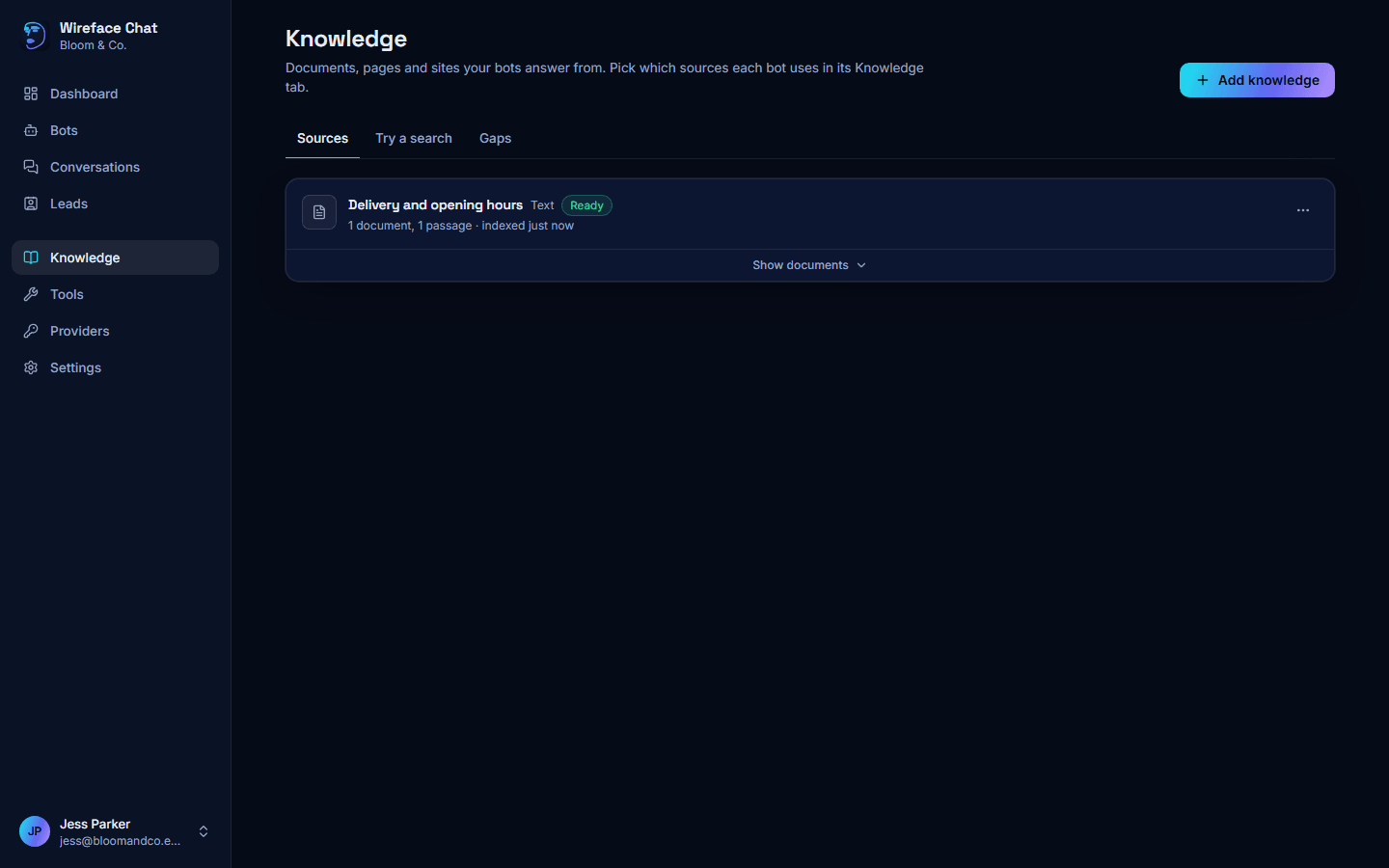
Adding a source
On the Knowledge page, click Add knowledge.
Choose What to add:
Choice What it reads A web page One page, fetched now and, if you like, on a schedule. A sitemap Every page listed in your site's sitemap.xml.A website Follows links from a start page, staying on your site. It respects the site's robots.txt.A file A PDF, Markdown, text, HTML or CSV file, up to 25 MB. Text Answers, policies or FAQs you paste in. Fill in the details:
- For a page, sitemap or website: the Page URL, Sitemap URL or Start page, a Title (optional), and for a sitemap or website the Most pages to read (50 to start with). Fetch again every so many hours keeps it up to date; empty, it's only fetched again when you ask.
- For a file: Choose a file.
- For text: a Title and the Text. Headings help: answers cite the section they came from.
Click Add and index.
The source is split into passages and indexed for searching. Its badge shows Waiting, Indexing, Ready or Failed (with the reason). Each source shows how many documents and passages it has and when it was indexed; Show documents lists its pages. The ... menu has Index again (or Fetch and index again for web sources) and Remove.
Then switch the source on for each bot that should use it, in the bot's Knowledge tab. With Show sources on (the bot's Behaviour tab), answers show links to the pages they came from.
The search matches the words of the question, not their meaning. Content written in your visitors' own words works best. More detail: Knowledge base.
Testing retrieval
Try a search shows what the agent would find for a question.
- Type A visitor's question, such as "Can I return something I bought online?".
- Choose how many Passages to show, and which sources to Search in.
- Click Search.
The passages are listed best first, with their source and a relevance score against the best match. If nothing is found, the agent would say it doesn't know: add a source that answers the question. The bot's own Knowledge tab has the same test, under Try it, over just that bot's sources.
The gaps report
Gaps lists Questions without answers: searches by your bots that found nothing, most asked first, with how many times and when last. Pick a bot to see only its gaps. Each one is something to write down as a source.
Tools
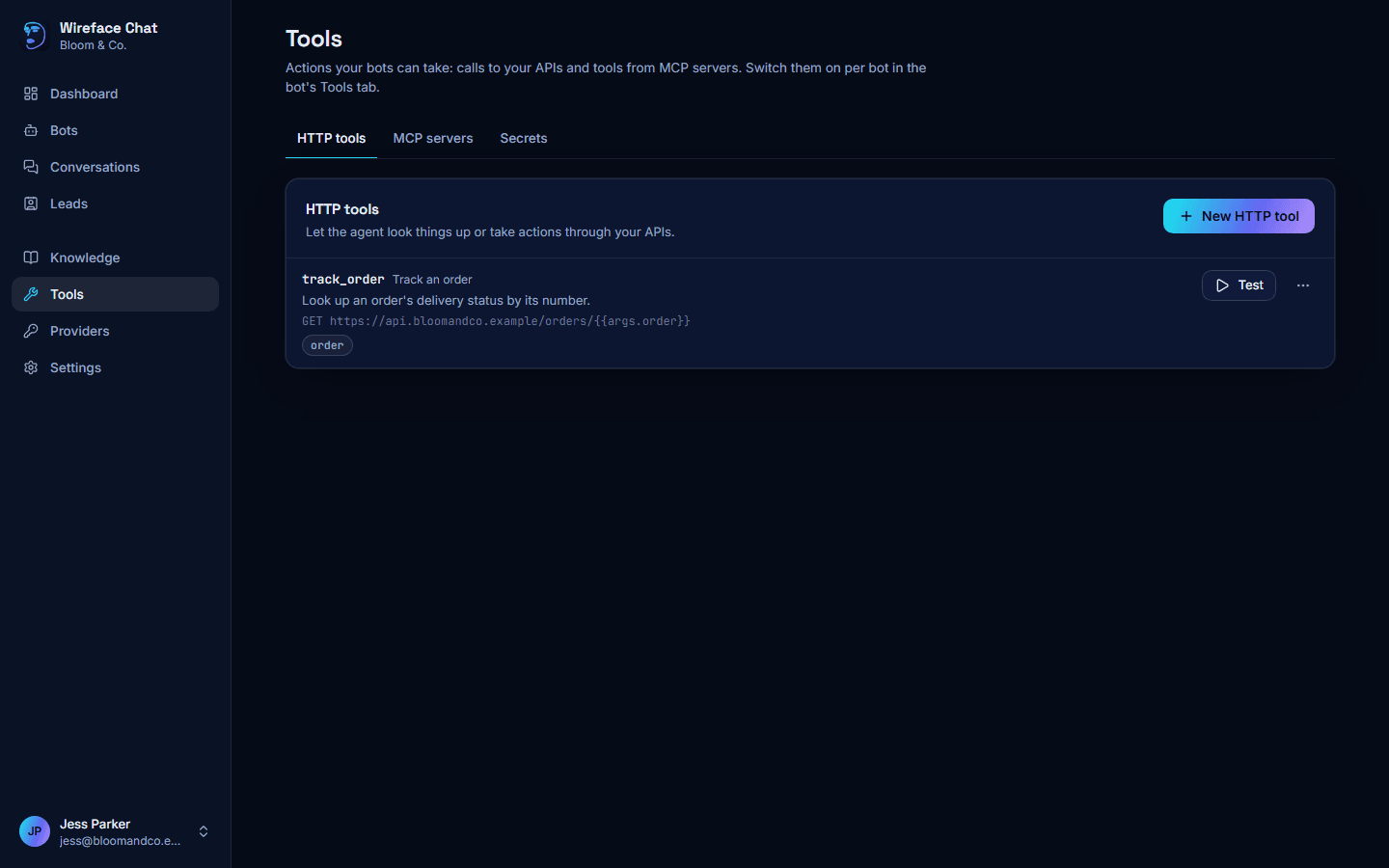
The Tools page has three tabs: HTTP tools, MCP servers and Secrets. Tools usually need someone who knows the system they connect to. The developer guide is Tools and MCP.
HTTP tools
An HTTP tool is a request to one of your own systems that the agent can make, such as looking up an order by its number.
- Click New HTTP tool.
- Give it a Name (what the AI calls it, such as
check_order_status: lowercase letters, digits and_), a Label (optional) that visitors see while it runs (such as "Checking your order"), and a Description. The description tells the AI what the tool does and when to use it, so it decides when the tool is called. - Under Request, choose the method and enter the URL, with any Headers, Query parameters and, for methods that send one, a Body (optional). Placeholders fill in values when the tool runs:
{{args.name}}for what the AI passes in,{{secret.NAME}}for a stored secret, and the visitor's and conversation's details such as{{visitor.email}}. - Under Parameters the model fills in, add what the AI must pass: Add a parameter, with its name, type (Text, Number, Whole number or Yes or no), what it is, and whether it's Required. JSON Schema switches to writing them as JSON.
- Under Response and safety:
- Use only part of the response (optional) picks part of the answer (such as
data.order). Smaller results cost less. - Timeout: how long to wait for an answer.
- Ask the visitor first: before it runs, the visitor sees what it's about to do and taps Allow or Don't allow. Use it for anything that changes something, such as an order or a booking.
- Allow private network addresses: off, the tool can't reach addresses inside your own network. Only turn it on for internal services you trust. (Not offered in a hosted workspace.)
- Use only part of the response (optional) picks part of the answer (such as
- Click Add tool.
To check a tool, click Test, adjust the sample arguments, and click Run it. It makes the real request, as a test visitor, and shows what came back. The ... menu has Edit and Delete.
Then switch the tool on for the bots that should use it, in each bot's Tools tab.
Secrets
Secrets are API keys and passwords your HTTP tools use. The Secrets tab is only shown to owners and admins.
- Click New secret.
- Give it a Name in capitals, such as
CRM_API_KEY, and paste the Value. - Click Save secret.
Use it in a tool's URL, headers or body as {{secret.CRM_API_KEY}}. The value is stored encrypted and can't be read back, and the AI never sees it. Replace changes the value; the bin deletes it (tools that use it then send an empty value).
MCP servers
An MCP (Model Context Protocol) server gives the agent ready-made tools, for calendars, CRMs or your own services.
- On the MCP servers tab, click Connect a server.
- Give it a Name.
- Choose the Transport: Streamable HTTP (the current standard) or HTTP + SSE (for older servers). Local command runs a program on the server, and can only be chosen if the server allows it.
- Enter the Server URL, and any Headers it needs (such as a key). Header values are stored encrypted and never shown again.
- Click Connect.
Its tools are listed as soon as it connects. Each server shows Connected, Not reachable or Not checked. Show tools lists them, marked Changes things or Read only when the server says so, and Try a tool runs one. Refresh fetches the list again; the ... menu has Edit and Remove.
In each bot's Tools tab, switch the server on, choose All of its tools or tick the ones allowed, and choose whether to Ask before tools that change things.
Tools on your page
Your website can also give the agent tools that run in the visitor's browser, such as adding a product to the cart. Your web developer adds them to your pages; you allow them in the bot's Tools tab, under Tools on your page: Allow page tools, and either Any tool the page registers or a list of Allowed tool names. See Client tools.
Hosted workspaces
Tools in a hosted workspace can only reach the public internet, and have limits on how many tools, knowledge sources and pages you can add.