Appearance
Face and voice
A bot's face is set in the bot editor's Face tab, and its voice in the Voice tab. Both are part of the draft: like every other change, they reach your site when you publish.
The face
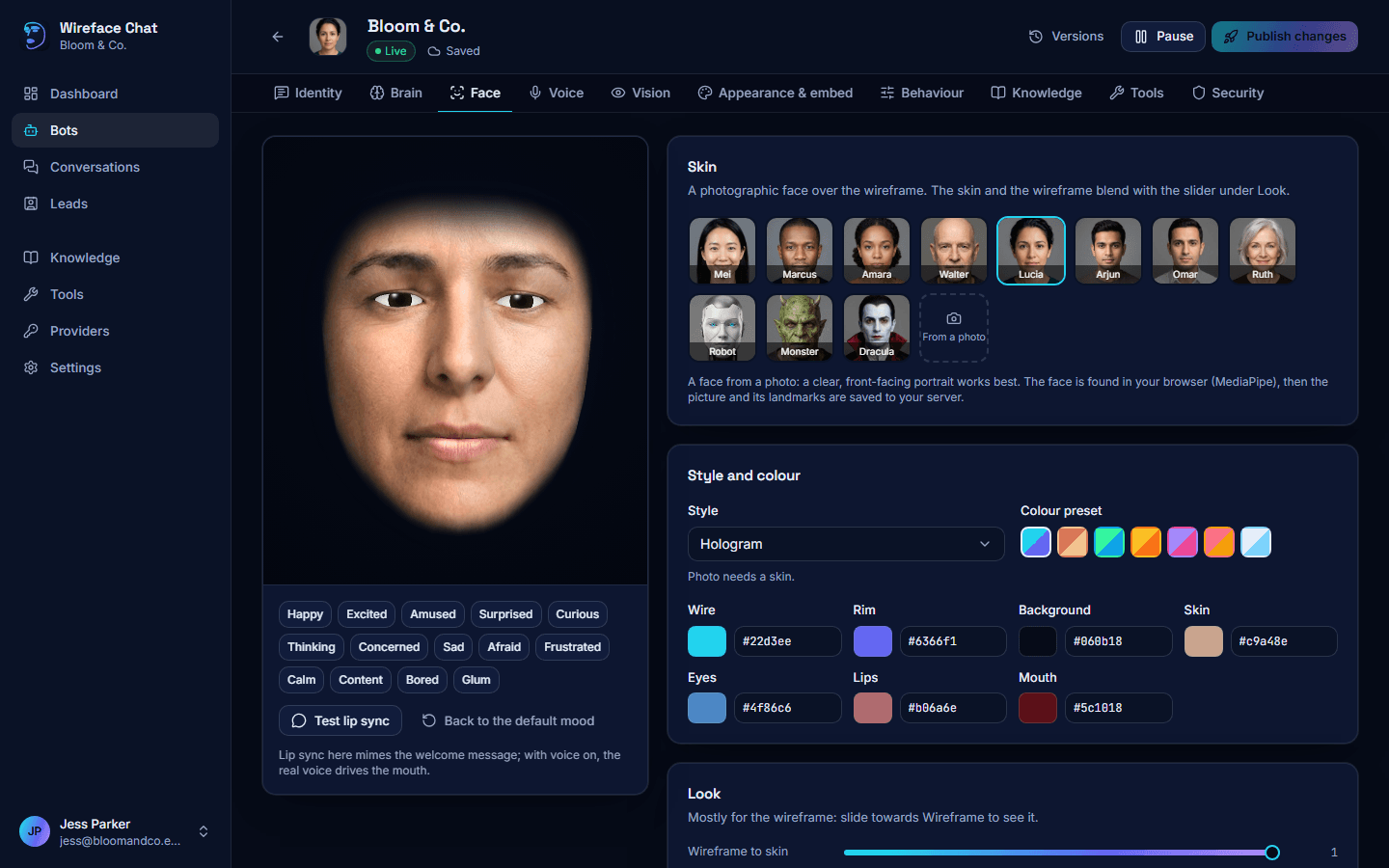
The Face tab has a live face on the left, and its settings on the right. Every change shows on the face at once.
Skins
A skin is a photographic face laid over the wireframe. Click one in the Skin gallery to put it on. Under Look, the Wireframe to skin slider blends between the bare wireframe and the skin.
A face from a photo
You can make a skin from a photo of a face:
- In the Skin gallery, click From a photo.
- Choose a picture (JPEG, PNG or WebP). A clear, front-facing portrait works best.
- Wait while the panel finds the face in the photo and saves it. When it says Your face is ready, the bot is wearing it.
The face is found in your browser; then the picture and the points of the face are saved on the server. The new face appears in the gallery for every bot in the workspace, named after the file. To delete one, point at it and click the small bin in its corner. Bots wearing a deleted face fall back to the wireframe until you pick another skin.
Style and colour
- Style: Hologram, Sculpt or Photo. Photo needs a skin.
- Colour preset: ready-made colour pairs. Point at a swatch to see its name.
- The colours one by one: Wire, Rim, Background, Skin, Eyes, Lips and Mouth. Pick a colour, or type its hex code (like
#22d3ee).
Look and motion
- Look is mostly for the wireframe: Wireframe to skin, Glow, Wire, Fill, Scanlines, Points and Edge fade. Eyeballs gives the eyes irises; off, they're hollow hologram eyes.
- Motion is how lively the face is: Head motion, Expressiveness, Mouth movement, Lip-sync offset (ms) (moves the mouth earlier or later than the sound) and Zoom. Follow the pointer makes the eyes and head follow the visitor's mouse.
- Teeth: the Teeth style, Teeth width and Teeth size. Photo skins show the teeth when the mouth opens.
Click the number at the end of a slider to put it back to its default.
Moods
The agent changes the face's mood as it chats, to suit what it's saying.
- The buttons under the face (Happy, Excited, Curious, Sad and the rest) show each mood for a few seconds, so you can see how this face does it.
- Back to the default mood returns the face to its resting mood.
- Under Expressions, the Expressions switch lets the agent change its expression while it talks, and Resting mood is the face's mood between expressions (or None).
Testing lip sync
Test lip sync makes the face mouth the bot's welcome message. This is a mime, without sound. With voice on, the real voice moves the mouth on your site; to hear and see that, talk to the bot in the preview.
If the mouth runs ahead of or behind the sound in voice conversations, adjust Lip-sync offset (ms) under Motion.
More face settings
- Config as JSON shows the face settings that differ from the defaults. Edit JSON lets you change them as text, or paste settings copied from another bot, then Apply.
- In the Appearance & embed tab, Show the face (off gives a text-only chat), Face size, and Typed replies (what the face does while a typed reply appears) control how the face shows in the chat window.
Voice
With voice on, visitors can talk to the face and hear it reply, with its lips moving to the sound. Typed chat keeps working either way, and both are one conversation. The voice settings are in the Voice tab. See also Voice in the developer docs.
Voice conversations
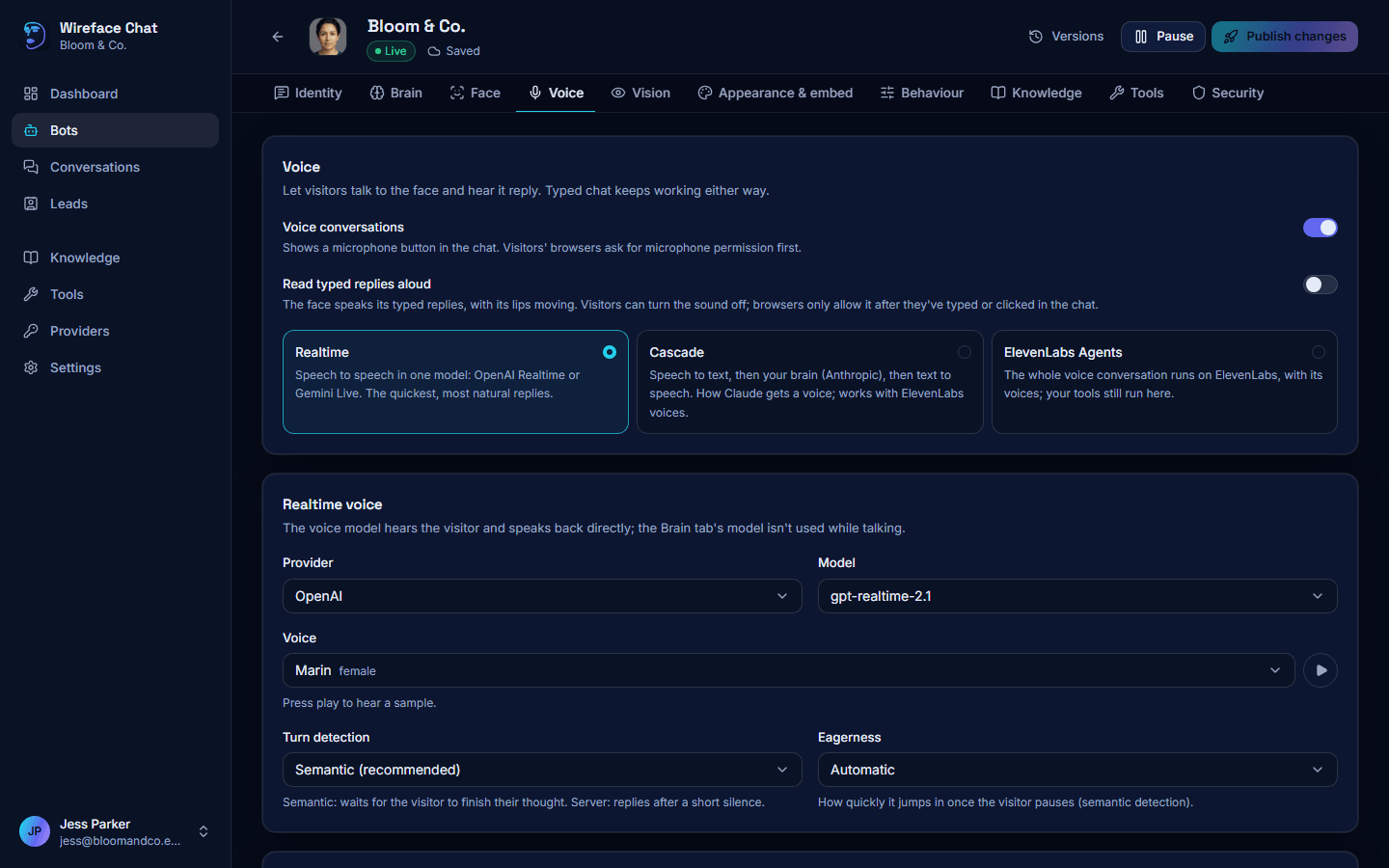
Turn on Voice conversations to show a microphone button in the chat. The visitor's browser asks for permission to use the microphone the first time. Browsers only allow the microphone on secure (HTTPS) sites, so your site needs HTTPS.
Then pick a Voice engine:
| Engine | How it works | Good for |
|---|---|---|
| Realtime | Speech to speech in one model: OpenAI Realtime or Gemini Live. The brain (the Brain tab's model) isn't used while talking. | The quickest, most natural replies. |
| Cascade | Three steps: speech to text turns the visitor's words into text, then the brain writes the reply, then text to speech reads it aloud, sentence by sentence. | Giving any brain a voice, Claude included, with all its tools and knowledge. Works with ElevenLabs voices. A little slower to answer. |
| ElevenLabs Agents | The whole voice conversation runs on ElevenLabs, with its voices. Your tools still run on Wireface Chat. | ElevenLabs users. |
Choosing provider, model and voice
Each engine has its own settings. The lists come from the providers you've connected.
Realtime voice:
- Provider: OpenAI or Gemini.
- Model: the voice model.
- Voice: press the play button next to it to hear a sample.
- Turn detection: Semantic (recommended) waits for the visitor to finish their thought; Silence based replies after a short pause. (Gemini Live detects turns itself.) Eagerness is how quickly it jumps in once the visitor pauses.
Cascade:
- Hearing (speech to text): the Provider and Model that turn speech into text. Language hint (optional) is a language code like
enores; empty, it's detected. - The brain is the one in the Brain tab.
- Speaking (text to speech): the Provider, Model and Voice. In the voice list you can search by name, accent or gender, and press play to hear each one. Speed sets how fast it talks, and Speaking style (optional) gives directions to voices that take them (OpenAI and Gemini), such as "warm and unhurried".
ElevenLabs Agents: pick the ElevenLabs account, the Speech model (empty uses ElevenLabs' default), the Voice, and optionally the Agent's language model. The first time a visitor talks to the bot, an agent called "Wireface:" and the agent's name is made in your ElevenLabs account, and kept up to date for you.
You can also browse and play every voice a key offers on the Providers page, with Show models and voices.
Conversation settings
- Let visitors interrupt: speaking while the face talks stops it, so the visitor can take over.
- Push to talk: Off: hands-free only, Allowed: visitor chooses, or Only: hold to talk (better in noisy places).
- Longest voice session and Hang up after silence end a voice conversation that goes on too long or goes quiet. The chat carries on in text.
Related settings elsewhere: Speak the greeting in the Identity tab, and the daily Voice minutes and Voice calls at once caps in the Security tab. When someone from your team takes over a conversation, voice ends and the chat carries on in text.
Reading typed replies aloud
The face can also speak the replies to typed messages, with its lips moving, without the visitor using the microphone. Voice conversations don't need to be on for this.
- In the Voice tab, turn on Read typed replies aloud. (This is the same setting as Typed replies, Reads them aloud, in the Appearance & embed tab.)
- In the Speaking (text to speech) section that appears, pick the Provider (OpenAI, Gemini or ElevenLabs), Model and Voice. With the cascade engine, this is the same voice it uses for voice conversations.
- Publish.
Without a speaking voice, the editor warns you, and the face mouths the words silently instead.
On your site, visitors get a sound button in the chat (Read replies aloud / Stop reading replies aloud), so they can turn the sound off; their choice is kept for the visit.
Sound needs a click first
Browsers only let a page play sound after the visitor has clicked or pressed a key in it. Until the visitor clicks or types in the chat, replies aren't read aloud and the face mouths them instead. After that, they're spoken.
Reading replies aloud uses your text-to-speech provider for every reply, which it bills you for.